Quicken Learn
Export your Quicken Net Worth report to CSV (in a few minutes)
If you use Quicken, you already have the hard part: a clean view of your accounts and debts.
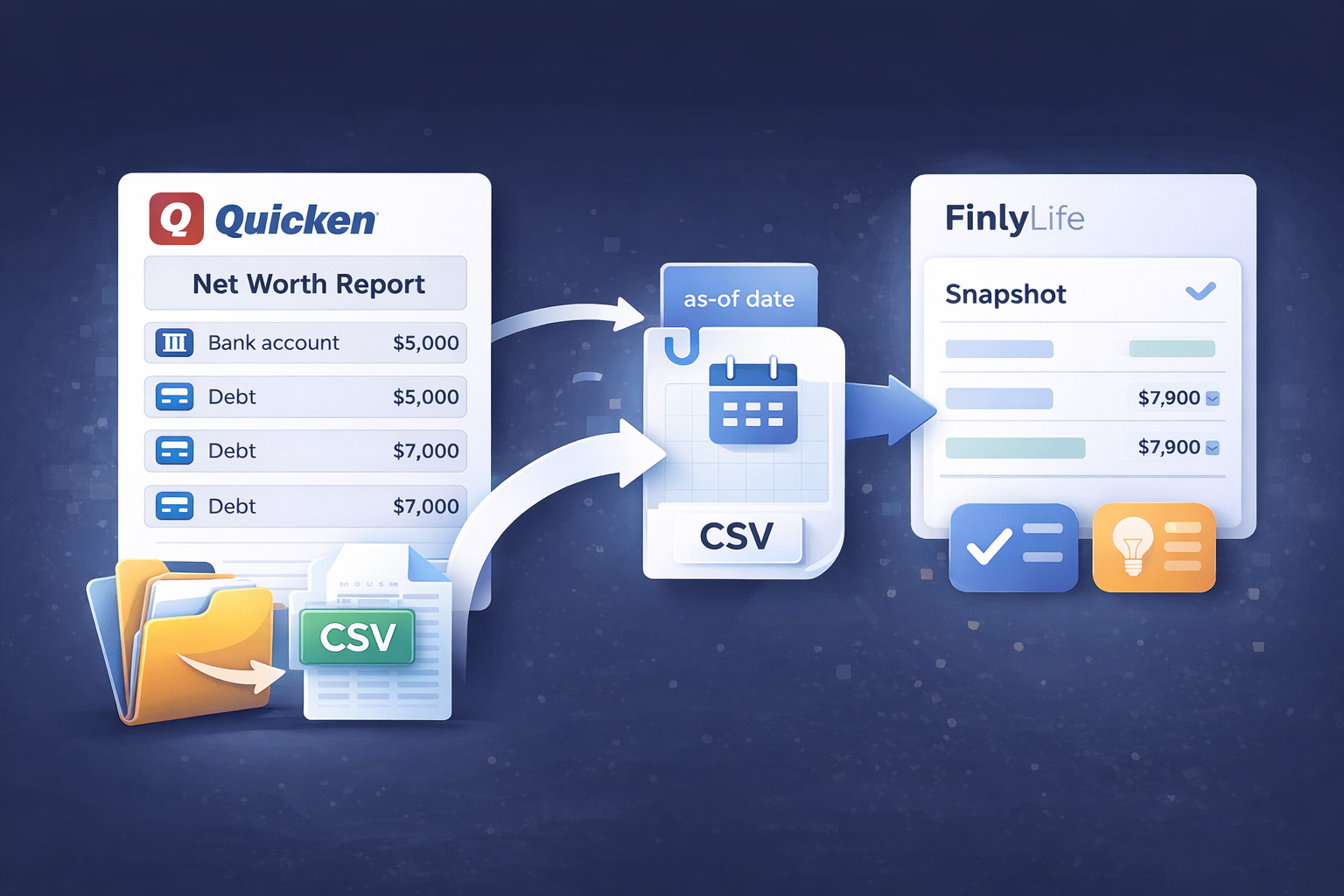
FinlyLife starts with a household snapshot—your balances and key totals at a point in time—so you can get planning guidance that’s grounded in your numbers (not guesses). The fastest way to create that snapshot is to export a Quicken Net Worth report and upload it.
Ready for a clearer plan?
No bank passwords. AI opt-in. See exactly what data was used.
What you’ll get at the end
- A CSV file with your accounts, group/type, and balances
- An “as-of date” snapshot you control
- A file you can import into FinlyLife to refresh balances in minutes (without sharing bank passwords)
Before you export: pick the right report
FinlyLife expects a “Net Worth” style snapshot (accounts + debts with balances). It does not need transactions.
In Quicken, look for a report named something like:
- Net Worth
- Net Worth & Balances
- Account Summary / Balance-style report (as long as it includes balances)
The key is the output: it should include the equivalent of:
- Account (or Name)
- Group (or Type)
- Balance
Tip
Set the report to a single “as-of” date (for example, today). That keeps the snapshot consistent.
Step-by-step: export the Net Worth report
The exact buttons can vary a bit by Quicken version and platform, but the workflow is consistent: open the Net Worth report, set the date, then export the report data.
Step 1) Open the Net Worth report
In Quicken, navigate to your Net Worth report (often under Reports → Net Worth & Balances).
Step 2) Set the “as-of” date
Set the report date to the day you want your snapshot to represent (many people use “today”).
This matters because it becomes the “as-of” date FinlyLife uses to anchor your snapshot and future comparisons.
Step 3) Export the report
Look for an Export option near the top of the report.
- On many Mac report views, you’ll see an Export button that can export the report to a CSV file.
- On many Windows report views, you may see “Export Data” and an option to export to Excel. That’s fine—export to Excel, open it, and save/export from Excel as CSV.
Step 4) Quick sanity-check the file
Open the exported file in Excel, Numbers, or Google Sheets and confirm:
- You see account/debt rows with balances
- The totals look roughly right
- The report date matches your intended “as-of” date
Upload to FinlyLife (and what happens next)
In FinlyLife:
- Go to Import → “Import from Quicken”
- Upload your Quicken Net Worth CSV
- Review the “Review & link accounts” screen
- Click “Apply import changes”
Important
Nothing is applied until you explicitly approve it.
On your first import, it’s normal for everything to be “created as new.” On later imports, FinlyLife will try to match rows to existing accounts so you can refresh balances without creating duplicates.
A quick privacy note
- No bank passwords
- AI is opt-in
- Shows “Data used” on every answer
Common issues (and how to fix them)
“I exported, but it looks like transactions”
You likely exported register transactions instead of a Net Worth report.
Go back and export a Net Worth / balance-style report (accounts + debts + balances).
“I don’t see Export to CSV”
Some report types (or older report views) may not support CSV export directly.
Try one of these:
- Switch to a different Net Worth report view (not “Net Worth Over Time” style legacy reports)
- Use “Copy to Clipboard” if available, paste into a spreadsheet, then save as CSV
- Export to Excel (Windows) and then “Save As” CSV
“Balances look off”
Double-check:
- the report “as-of” date
- whether the report includes hidden accounts
- whether certain assets (like property values) are tracked manually vs updated
If you want: import the file anyway—FinlyLife will show a snapshot, and you can refine inputs gradually.
Next: make the snapshot useful (the 3 inputs that unlock better answers)
Once your balances are in, the highest-leverage additions are:
- Monthly spending (rough is fine)
- Retirement ages/target years
- Interest rates + minimum payments for major debts
That’s enough to move from “generic” to “advisor-style” next steps.
Ready to try it?
Try it risk-free: explore the demo to see what “Data used” looks like, then create a free account when you’re ready to import your own snapshot.
FinlyLife provides practical financial planning guidance. It is not personalized investment, tax, or legal advice.
Ready for a clearer plan?
No bank passwords. AI opt-in. See exactly what data was used.
Related guides
View all →Exclude accounts from Quicken net worth (clean snapshot method)
Exclude specific accounts from your Quicken net worth for a clean planning snapshot.
Read guide →
Export Quicken Net Worth report to CSV (Mac)
Step-by-step instructions to export a Quicken Net Worth report to CSV on Mac.
Read guide →
Export Quicken Net Worth report to CSV (Windows)
Step-by-step instructions to export a Quicken Net Worth report to CSV on Windows.
Read guide →
Refresh Quicken balances in FinlyLife (2-minute workflow)
Export a Quicken Net Worth CSV monthly, review matches, and refresh balances without overwriting holdings.
Read guide →
Monthly net worth review: the 10-minute routine an advisor uses
A simple monthly snapshot review to understand what changed and turn it into clear next steps.
Read guide →
Quicken CSV troubleshooting (import fixes)
The most common Quicken CSV issues and fast fixes so you can get a clean snapshot and move on.
Read guide →